
Applies to: Work 365, Dynamics 365
Audience: Administrators, IT Teams
Overview
When attempting to send a portal invitation in Work 365, errors may occur if the Work 365 application user lacks the necessary permissions. This guide provides step-by-step instructions to verify and assign the appropriate security roles to resolve this issue.
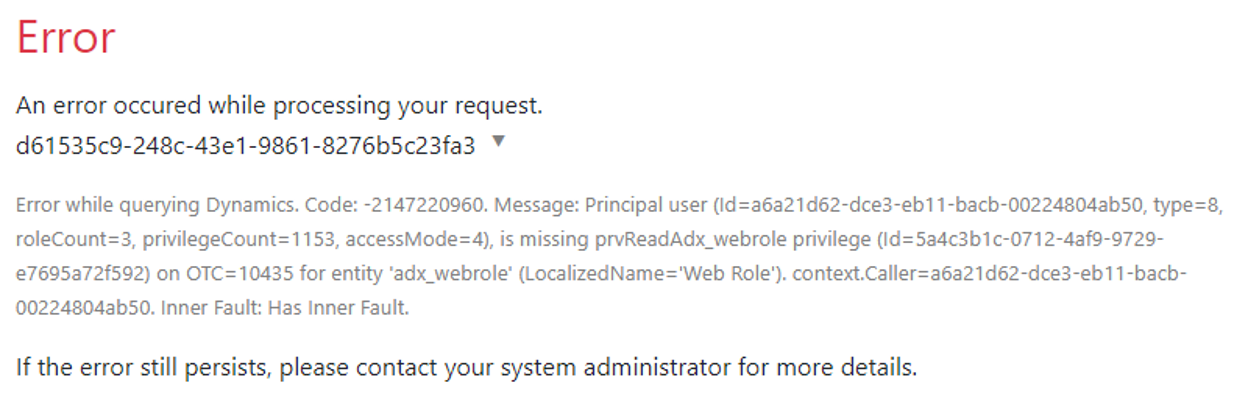
Steps to Resolve Portal Invitation Errors
1. Access Advanced Settings
✅ In your Dynamics 365 environment, click on the gear icon in the upper-right corner.
✅ Select Advanced Settings from the dropdown menu.
2. Navigate to Users
✅ Within the Advanced Settings window, go to Settings > Security > Users
3. Locate the Work 365 Application User
✅ Change the view to Application Users to filter the list accordingly.
✅ Identify the user with the following Application ID:
US:
e4b1a995-abe3-4350-a61c-65fccd32e8bd
EU:
5e56ae97-9be1-40d3-938b-99ea52175a30
This ID corresponds to the Work 365 application user.
4. Manage User Roles
✅ Select the identified Work 365 application user.
✅ Click on Manage Roles in the command bar.
5. Assign Appropriate Security Roles
✅ Ensure that only the following security roles are assigned to the Work 365 application user:
✔ Work 365 Portal Service
✔ Work 365 Service
✅ If any additional roles are assigned, remove them to prevent potential conflicts.
6. Save and Test
✅ Click OK to save the changes.
✅ Attempt to resend the portal invitation to verify that the issue has been resolved.
Conclusion
By following these steps, you can ensure that the Work 365 application user has the correct permissions, thereby resolving errors encountered when sending portal invitations.